Everything for your next animation, from any page.
Programmable Capture collects screens, click-throughs, articles, quotes, images, tables, products and brands as you browse, and sends them to the Studio in one click: for demos, stories, social clips and decks.
Works in Chrome, Edge, Brave and Arc, in English and Spanish. Version 1.3.
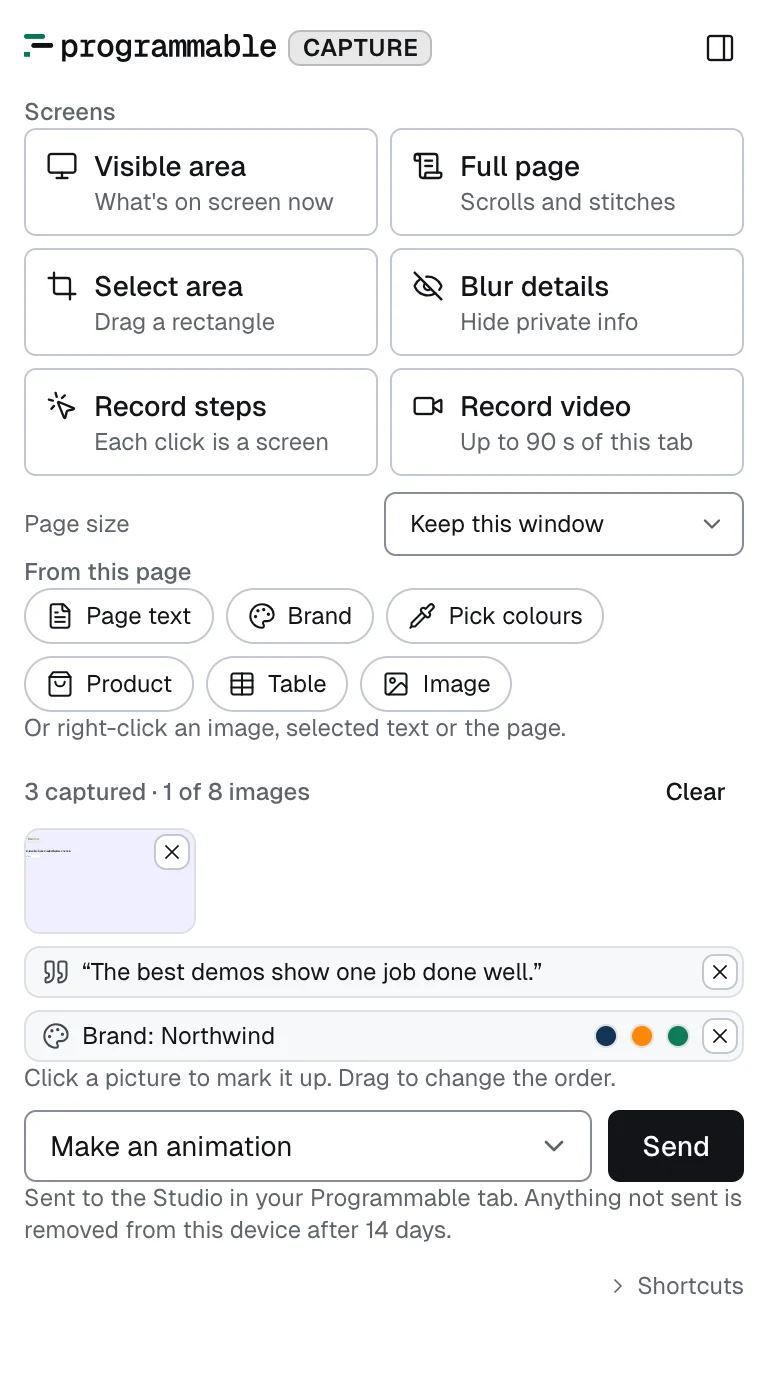
What it does
For product demos
Visible area or full page
Capture what's on screen, or let it scroll the page and stitch it into one tall image. Web apps that scroll inside a panel work too.
Select an area
Drag a rectangle around the part that matters: a chart, a form, a single feature.
Record a click-through
Click through a feature as usual. Each click becomes a screen with what you clicked, and the demo follows your steps in order.
Record the tab
Up to 90 seconds of video of the tab, with nothing of ours on the page. The Studio picks the key screens from it.
Blur private details
Blur details for a quick demo, or every email on the page in one click. For anything private, use sample data or the solid Hide box.
Mark it up
Open a capture to add arrows, boxes, highlights and text, cover a detail with a solid box, or download it as a PNG. Drag captures to put them in order.
The right size for galleries
Size the window so the page is exactly 1920 × 1080 for AppSumo, 1270 × 760 for Product Hunt, or 1280 × 720 or 1440 × 810 for other 16:9 uses.
For stories, explainers and social clips
Send a page
The article or post's text, title, author and date become the source, even behind a login or paywall you can already read.
Quotes and images
Right-click a selected passage to send it as a quote word for word, or an image with its caption and photo credit.
Tables
Click any table to send its numbers for charts and data scenes.
For brands, products and decks
Grab a brand
A site's colours, fonts and logo go into your brand kit for review. Or pick colours from anywhere on screen.
Products from any store
Name, price, rating, description and photos from a product page, on any shop.
Make a deck
Collect a few pages as you browse, choose Make a deck, and send them all at once.
Graphics from what you find
Send a page, a quote or screenshots and get graphics in every social size.
Save to Ideas
Not ready to make anything yet? Right-click to save a page, quote or image to your Ideas board without leaving the page, then pick some later to make graphics, a logo, an animation or a deck.
Keep the tray in view
Open the tray in a side panel while you browse, and send when you're ready.
Install it
- Download the extension and unzip it.
- Open
chrome://extensionsand turn on Developer mode (top right). - Click Load unpacked and choose the unzipped folder.
- Pin Programmable Capture from the puzzle-piece menu so it's one click away.
Use it
- For a demo, open your product: capture screens, or press Record steps and click through the feature. Blur anything private first, then click a capture in the tray to add arrows or hide details. Shortcuts: Alt+Shift+S captures the screen, Alt+Shift+A selects an area, Alt+Shift+X stops recording.
- For a story or a deck, open an article and press Page text, or right-click images and selected quotes. Grab tables, products and the brand the same way.
- Choose what to make (an animation, social clips, a deck or graphics), or Save to Ideas, and press Send. It all appears in your open Studio (or a new one); a brand goes to your brand kit for review unless you save it to Ideas.
What you capture stays in your browser until you send it (anything not sent is removed after 14 days), and is uploaded by the Studio with your own sign-in. The extension only reads a page when you use it there; recording steps across page loads asks to allow that one site.